
 If you run a business, whether online, local, or service-based—Google my Business (GMB) (now officially known as Google Business Profile) is one of the most powerful free tools to increase online visibility. More than 90% of consumers search for businesses on Google Maps and Google Search, which makes having an optimized Google Business Profile essential for local SEO, customer engagement, and sales.
This detailed guide covers everything you need to know, from creating your account to verification, optimization, SEO tips, dealing with reviews, and advanced features like GMB Ads.
What Is Google My Business / Google Business Profile?
Google My Business (GMB) is a free business listing platform by Google that allows businesses to appear on:
-
Google Search
-
Google Maps
-
Local search results (“near me” searches)
Your Google Business Profile acts as your digital storefront and displays:
-
Business name, address, phone number
-
Hours of operation
-
Website link
-
Photos, videos, and cover image
-
Menu, services, products
-
Customer reviews
-
FAQs
-
Directions on Maps
This helps customers easily find, contact, and trust your business.
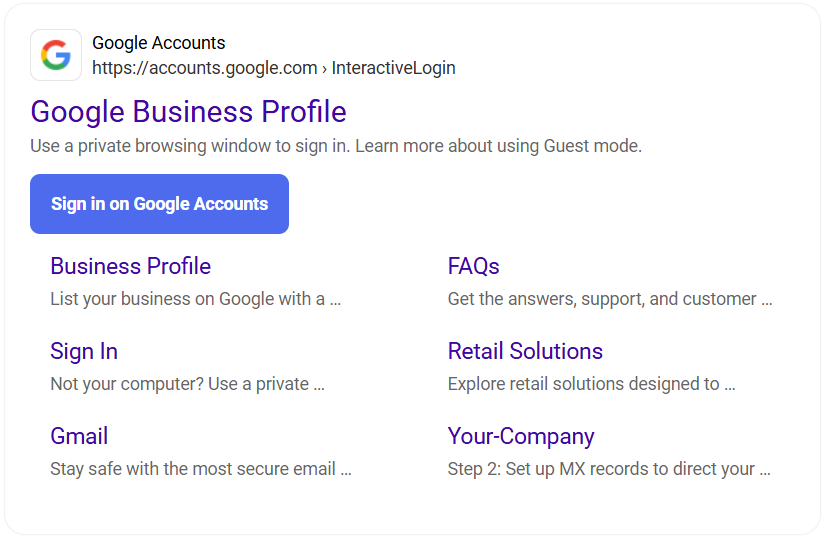
1. How to Create a Google My Business Account
Step-by-Step Guide to Google My Business Registration
-
Click “Sign in Google My Business”
-
Log in using your Google account
-
Enter your business name
-
Choose a Google My Business category that best fits your service
-
Enter your address (or choose “service area business” if you work remotely)
-
Add business phone number & website
-
Add business hours
-
Add services/products
-
Upload photos and cover photo
Your profile is created, but not fully active until verified.
2. Verifying Your Google My Business Profile
Why Verification Matters
A Google My Business Verified profile appears:
-
Higher in search results
-
More trustworthy
-
Eligible for reviews
-
Eligible for Maps listing
Verification Methods
-
Postcard with verification code
-
Phone call or SMS
-
Email verification
-
Video verification (new & fastest)
Once verified, your business will be live on Google Maps & Search.
3. Google My Business Manager: Managing Your Profile Like a Pro
Google has simplified management under the “Google Business Manager” dashboard where you can update:
✔ Business hours
✔ Phone number
✔ Website
✔ Photos
✔ Posts
✔ Promotions
✔ Products & services

This centralized dashboard also gives insights into:
-
Searches performed
-
Profile views
-
Map views
-
Customer actions (calls, messages, bookings)
-
Review stats
4. Google My Business SEO (Local SEO Optimization Guide)
To rank higher on Google Maps and Search, use these optimization strategies:
a) Use the right category
Choose a primary category relevant to your business and add Google My Business category list–based secondary categories.
b) Add business description
Include keywords naturally:
“Google Maps business”, “local business”, “service provider”, etc.
c) Upload high-quality photos
Recommended Google My Business cover photo size:
1024 x 576 px
d) Add products/services
Helps Google understand your business better.
e) Post regularly
Use “Post on Google My Business” to share:
-
offers
-
events
-
updates
-
new products
f) Optimize your Google My Business reviews
More positive reviews = better ranking.
5. How to Respond to Reviews on Google My Business
Open your dashboard → Reviews → Reply.
Best practices:
✔ Respond politely
✔ Address negative reviews professionally
✔ Thank customers for positive feedback
Review management improves trust and SEO.
6. Google My Business Ads (Location-Based Google Ads)
You can run location extension ads that show:
-
Your business location
-
Call button
-
Directions on Maps
-
Open hours
These ads boost local visibility and help customers find you faster.
7. How to Add Photos & Videos to Google My Business
Steps:
-
Go to your profile dashboard
-
Select Photos
-
Upload:
-
Logo
-
Cover photo
-
Inside/outside business photos
-
Team photos
-
Short videos (up to 30 seconds)
-
Keep images clear and branded.
8. How to Link Your Online Store With Google My Business
You can connect:
-
Shopify
-
WooCommerce
-
Square
-
Wix
This enables features like:
✔ Product listings
✔ Buy Online
✔ Shopping Actions
Great for e-commerce businesses.
9. Where to Update Business Hours, Contact Info, and Services
Go to Google Business Profile Dashboard → Edit Profile.
Here you can update:
-
Hours
-
Special holiday hours
-
Phone number
-
Google My Business phone number public display
-
Email
-
Website
-
Services list
Keep your info updated to avoid losing customers.
10. Google My Business Support & Customer Care
Here are the support options:
Google My Business Help Center:
Provides articles & troubleshooting.
Google My Business Help:
Live chat support (timing varies).
Google My Business Customer Care Number (24/7)?
Google does not provide a 24/7 phone support number.
They support through:
-
Email
-
Chat
-
Help Center
Avoid fake “customer care numbers” online.
11. Google Maps Business Listing
Your business automatically appears on Google Maps once verified.
Benefits:
✔ More foot traffic
✔ Better trust
✔ Visibility in “near me” searches
✔ Customers can navigate to your location easily
12. Can Freelancers Add Their Online Services on Google My Business? (Yes, Here’s How!)
Many freelancers think Google My Business (Google Business Profile) is only for physical shops or local businesses—but that’s not true. Google allows online, remote, and service-based freelancers to create a professional business listing even without a physical office.
Whether you are a:
-
Graphic Designer
-
Social Media Manager
-
Web Designer / Developer
-
Digital Marketer
-
Content Writer
-
Video Editor
-
Consultant or Coach
-
Virtual Assistant
-
Freelancer offering any remote service
…you can list your services on Google and appear in searches like:
-
“Freelance social media manager near me”
-
“Graphic designer Pakistan”
-
“Website designer online services”
This helps clients discover you through Google Search & Maps, increases credibility, and can generate more leads.
13. How Freelancers Can Add Their Services on Google My Business (Step-by-Step Procedure)
Step 1: Create Your Google Business Profile
-
Visit www.google.com/business
-
Sign in with your Google account
-
Enter your freelancer name or brand name
Example: Madiha Yaqoob – Social Media Strategist -
When asked for business type, choose:
✔ Service-area business
✔ Do NOT choose a physical location unless you have an office
Step 2: Add Your Service Area
Because freelancers work remotely, you can add:
-
Your city
-
Your country
-
Regions you serve
Example: “Pakistan”, “Worldwide”, “Remote Clients”
Step 3: Select the Right Business Categories
This is important for ranking.
Examples:
-
Social Media Marketing Agency
-
Graphic Designer
-
Web Designer
-
Consultant
-
Marketing Agency
-
Digital Marketer
-
Content Writer
Choose 1 primary category + 3–5 secondary categories.
Step 4: Add Your Services
Google will automatically suggest services based on your category.
Examples:
-
Social media content creation
-
Website development
-
Logo design
-
SEO services
-
Copywriting
-
Video editing
You can also add custom services that Google does not list.
Step 5: Add a Business Description
Write a detailed introduction about:
-
Who you are
-
What you offer
-
Your experience
-
Why clients should trust you
Include keywords like:
-
“online services”
-
“freelancer”
-
“remote service provider”
-
“digital services”
Step 6: Add Portfolio Photos or Work Samples
Freelancers should upload:
-
Portfolio samples
-
Before/after designs
-
Website screenshots
-
Service mockups
-
Client testimonials
High-quality visuals build trust instantly.
Step 7: Add Contact Options
Add your:
-
Phone number
-
WhatsApp number
-
Email
-
Website / portfolio link
-
Social media pages
The more contact options, the better.
Step 8: Verify Your Profile
Freelancers normally get phone/email/video verification.
Once verified, your profile will appear in:
-
Google Search
-
Google Maps
-
Local service search results
Step 9: Keep Posting Regular Updates
Use the “Posts” feature to share:
-
Your work samples
-
Client reviews
-
Tips & insights
-
Before/after designs
-
Portfolio additions
-
Your latest services
This helps increase visibility.
14. Why Freelancers Should Use Google My Business
✔ Build credibility
✔ Get more client inquiries
✔ Appear in local and “near me” searches
✔ Strengthen your freelance brand
✔ Improve Google rankings
✔ Show your services professionally
✔ Display reviews & ratings
Google My Business is completely free, yet extremely powerful for freelancers who want to stand out online.
Google My Business Optimization Checklist
Use this checklist to ensure your profile is fully optimized:
-
Claim and verify account
-
Add complete business information
-
Upload logo & cover photo
-
Add minimum 10–15 images
-
Use correct categories
-
Add services & products
-
Add business attributes (women-led, online services, etc.)
-
Enable messaging
-
Respond to all reviews
-
Post weekly updates
-
Add FAQ section
FAQs About Google Business Profile
Q. How do I create a business profile on a popular local listing platform?
A. Use Google Business Profile → Add business → Verify.
Q. What are the best tools to manage online business listings?
-
Google Business Manager
-
Moz Local
-
Semrush Local
-
BrightLocal
Q. Can I link my online store to Google My Business?
Yes—Shopify, WooCommerce, Squarespace, and Wix support it.
Q. How do I respond to reviews?
Login → Reviews → Reply.
Q. What are the benefits of verification?
Higher visibility, SEO boost, access to reviews, Maps ranking.
Final Thoughts
A fully optimized Google My Business (Google Business Profile) is a game changer for local and online businesses. Whether you’re a freelancer, agency, shop owner, restaurant, or e-commerce brand—this tool helps you get discovered, build trust, and turn searchers into customers.